Friday, February 25, 2011

contact change listner

package contact.change.listner;

import android.app.Activity;
import android.database.ContentObserver;
import android.os.Bundle;
import android.provider.Contacts.People;

public class contactchangelistner extends Activity {
    /** Called when the activity is first created. */
    @Override
    public void onCreate(Bundle savedInstanceState) {
        super.onCreate(savedInstanceState);
        setContentView(R.layout.main);
  
     
            this.getApplicationContext().getContentResolver().registerContentObserver (People.CONTENT_URI, true, contentObserver);
        }

        private class MyContentObserver extends ContentObserver {

            public MyContentObserver() {
                super(null);
            }

            @Override
            public void onChange(boolean selfChange) {
                super.onChange(selfChange);
        
            System.out.println("==========change");
            }

        }

        MyContentObserver contentObserver = new MyContentObserver();
    }

URL:http://stackoverflow.com/questions/1401280/how-to-listen-for-changes-in-contact-database

YouTubeHandler

package com.pa.ch11.video;

import android.content.ContentUris;
import android.content.ContentValues;
import android.database.Cursor;
import android.database.sqlite.SQLiteDatabase;
import android.net.Uri;
import android.util.Log;
import com.finchframework.finch.Finch;
import com.finchframework.finch.rest.RESTfulContentProvider;
import com.finchframework.finch.rest.ResponseHandler;
import com.pa.ch11.Ch11;
import org.apache.http.HttpEntity;
import org.apache.http.HttpResponse;
import org.xmlpull.v1.XmlPullParser;
import org.xmlpull.v1.XmlPullParserException;
import org.xmlpull.v1.XmlPullParserFactory;

import java.io.IOException;
import java.io.InputStream;
import java.io.InputStreamReader;

/**
 * Parses YouTube Entity data and and inserts it into the finch video content
 * provider.
 */
public class YouTubeHandler implements ResponseHandler {
    public static final String MEDIA = "media";
    public static final String GROUP = "group";
    public static final String DESCRIPTION = "description";
    public static final String THUMBNAIL = "thumbnail";
    public static final String TITLE = "title";
    public static final String CONTENT = "content";

    public static final String WIDTH = "width";
    public static final String HEIGHT = "height";

    public static final String YT = "yt";
    public static final String DURATION = "duration";
    public static final String FORMAT = "format";

    public static final String URL = "url";
    public static final String THUMB_URL = "thumb_url";

    public static final String MOBILE_FORMAT = "1";

    public static final String ENTRY = "entry";
    public static final String ID = "id";

    private static final String FLUSH_TIME = "5 minutes";

    private RESTfulContentProvider mFinchVideoProvider;

    private String mQueryText;
    private boolean isEntry;

    public YouTubeHandler(RESTfulContentProvider restfulProvider,
                          String queryText)
    {
        mFinchVideoProvider = restfulProvider;
        mQueryText = queryText;
    }

    /*
     * Handles the response from the YouTube gdata server, which is in the form
     * of an RSS feed containing references to YouTube videos.
     */
    public void handleResponse(HttpResponse response, Uri uri)
            throws IOException
    {
        try {
            int newCount = parseYoutubeEntity(response.getEntity());

            // only flush old state now that new state has arrived
            if (newCount > 0) {
                deleteOld();
            }

        } catch (IOException e) {
            // use the exception to avoid clearing old state, if we can not
            // get new state.  This way we leave the application with some
            // data to work with in absence of network connectivity.

            // we could retry the request for data in the hope that the network
            // might return.
        }
    }

    private void deleteOld() {
        // delete any old elements, not just ones that match the current query.

        Cursor old = null;

        try {
            SQLiteDatabase db = mFinchVideoProvider.getDatabase();
            old = db.query(FinchVideo.Videos.VIDEO, null,
                    "video." + FinchVideo.Videos.TIMESTAMP +
                            " < strftime('%s', 'now', '-" + FLUSH_TIME + "')",
                    null, null, null, null);
            int c = old.getCount();
            if (old.getCount() > 0) {
                StringBuffer sb = new StringBuffer();
                boolean next;
                if (old.moveToNext()) {
                    do {
                        String ID = old.getString(FinchVideo.ID_COLUMN);
                        sb.append(FinchVideo.Videos._ID);
                        sb.append(" = ");
                        sb.append(ID);

                        // get rid of associated cached thumb files
                        mFinchVideoProvider.deleteFile(ID);

                        next = old.moveToNext();
                        if (next) {
                            sb.append(" OR ");
                        }
                    } while (next);
                }
                String where = sb.toString();

                db.delete(FinchVideo.Videos.VIDEO, where, null);

                Log.d(Finch.LOG_TAG, "flushed old query results: " + c);
            }
        } finally {
            if (old != null) {
                old.close();
            }
        }
    }

    private int parseYoutubeEntity(HttpEntity entity) throws IOException {
        InputStream youTubeContent = entity.getContent();
        InputStreamReader inputReader = new InputStreamReader(youTubeContent);

        int inserted = 0;

        try {
            XmlPullParserFactory factory = XmlPullParserFactory.newInstance();
            factory.setNamespaceAware(false);
            XmlPullParser xpp = factory.newPullParser();

            xpp.setInput(inputReader);

            int eventType = xpp.getEventType();
            String startName = null;
            ContentValues mediaEntry = null;

            // iterative pull parsing is a useful way to extract data from
            // streams, since we dont have to hold the DOM model in memory
            // during the parsing step.

            while (eventType != XmlPullParser.END_DOCUMENT) {
                if (eventType == XmlPullParser.START_DOCUMENT) {
                } else if (eventType == XmlPullParser.END_DOCUMENT) {
                } else if (eventType == XmlPullParser.START_TAG) {
                    startName = xpp.getName();

                    if ((startName != null)) {

                        if ((ENTRY).equals(startName)) {
                            mediaEntry = new ContentValues();
                            mediaEntry.put(FinchVideo.Videos.QUERY_TEXT,
                                    mQueryText);
                        }

                        if ((MEDIA + ":" + CONTENT).equals(startName)) {
                            int c = xpp.getAttributeCount();
                            String mediaUrl = null;
                            boolean isMobileFormat = false;

                            for (int i = 0; i < c; i++) {
                                String attrName = xpp.getAttributeName(i);
                                String attrValue = xpp.getAttributeValue(i);

                                if ((attrName != null) &&
                                        URL.equals(attrName))
                                {
                                    mediaUrl = attrValue;
                                }

                                if ((attrName != null) && (YT + ":" + FORMAT).
                                        equals(MOBILE_FORMAT))
                                {
                                    isMobileFormat = true;
                                }
                            }

                            if (isMobileFormat && (mediaUrl != null)) {
                                mediaEntry.put(URL, mediaUrl);
                            }
                        }

                        if ((MEDIA + ":" + THUMBNAIL).equals(startName)) {
                            int c = xpp.getAttributeCount();
                            for (int i = 0; i < c; i++) {
                                String attrName = xpp.getAttributeName(i);
                                String attrValue = xpp.getAttributeValue(i);

                                if (attrName != null) {
                                    if (FinchVideo.Videos.URL.equals(attrName))
                                    {
                                        mediaEntry.put(
                                                FinchVideo.Videos.THUMB_URL,
                                                attrValue);
                                    } else if (WIDTH.equals(attrName))
                                    {
                                        mediaEntry.put(
                                                FinchVideo.Videos.THUMB_WIDTH,
                                                attrValue);
                                    } else if (HEIGHT.equals(attrName))
                                    {
                                        mediaEntry.put(
                                                FinchVideo.Videos.THUMB_HEIGHT,
                                                attrValue);
                                    }
                                }
                            }
                        }

                        if (ENTRY.equals(startName)) {
                            isEntry = true;
                        }
                    }
                } else if(eventType == XmlPullParser.END_TAG) {
                    String endName = xpp.getName();

                    if (endName != null) {
                        if (ENTRY.equals(endName)) {
                            isEntry = false;
                        } else if (endName.equals(MEDIA + ":" + GROUP)) {
                            // insert the complete media group
                            inserted++;

                            // Directly invoke insert on the finch video
                            // provider, without using content resolver.  We
                            // would not want the content provider to sync this
                            // data back to itself.
                            SQLiteDatabase db = mFinchVideoProvider.getDatabase();
                            Uri providerUri = mFinchVideoProvider.
                                    insert(FinchVideo.Videos.CONTENT_URI,
                                            mediaEntry, db);
                            if (providerUri != null) {
                                long ID = ContentUris.parseId(providerUri);
                                String thumbUrl = (String) mediaEntry.
                                        get(FinchVideo.Videos.THUMB_URL);

                                // We might consider lazily downloading the
                                // image so that it was only downloaded on
                                // viewing.  Downloading more aggressively,
                                // could also improve performance.
                                mFinchVideoProvider.
                                        cacheUri2File(String.valueOf(ID), thumbUrl);
                            }
                        }
                    }

                } else if (eventType == XmlPullParser.TEXT) {
                    // newline can turn into an extra text event
                    String text = xpp.getText();
                    if (text != null) {
                        text = text.trim();
                        if ((startName != null) && (!"".equals(text))){
                            if (ID.equals(startName) && isEntry) {
                                int lastSlash = text.lastIndexOf("/");
                                String entryId =
                                        text.substring(lastSlash + 1);
                                mediaEntry.put(FinchVideo.Videos.MEDIA_ID,
                                        entryId);
                            } else if ((MEDIA + ":" + TITLE).
                                    equals(startName)) {
                                mediaEntry.put(TITLE, text);
                            } else if ((MEDIA + ":" +
                                    DESCRIPTION).equals(startName))
                            {
                                mediaEntry.put(DESCRIPTION, text);
                            }
                        }
                    }
                }
                eventType = xpp.next();
            }

            // an alternate notification scheme, might be to notify only after
            // all entries have been inserted.

        } catch (XmlPullParserException e) {
            Log.d(Ch11.LOG_TAG,
                    "could not parse video feed", e);
        } catch (IOException e) {
            Log.d(Ch11.LOG_TAG,
                    "could not process video stream", e);
        }

        return inserted;
    }
}
URL:http://programming-android.labs.oreilly.com/ch11.html

Thursday, February 24, 2011

Getting the Contact Info someone cal you

On android when someone call you or you receive a message, a non formatted number would be shown to you and for you to find out whom that number is, you have to use Contacts.Phones.CONTENT_FILTER_URL on your query. This article is based on Get Phone State When Someone is calling using BroadcastReceiver Example

public class MyPhoneStateListener extends PhoneStateListener {
  private String[] projection = new String[] {
    People._ID, People.NAME, People.NUMBER
  };
  public void onCallStateChanged(int state,String incomingNumber){
    switch(state)
    {
      case TelephonyManager.CALL_STATE_IDLE:
        Log.d("DEBUG", "IDLE");
      break;
      case TelephonyManager.CALL_STATE_OFFHOOK:
        if(!incomingNumber.equals("")){
          handleCall(incomingCall);
        }
      break;
      case TelephonyManager.CALL_STATE_RINGING:
        Log.d("DEBUG", "RINGING");
      break;
    }
  }
  public void handleCall(String incomingCall){
    Uri contactUri = Uri.withAppendedPath(Contacts.Phones.CONTENT_FILTER_URL,
incomingNumber);
    contactsCursor = context.getContentResolver().query(contactUri,
projection, null , null, People.NAME + " ASC");
    if(contactsCursor.moveToFirst()){
      int phoneNameIndex = contactsCursor.getColumnIndex(People.NAME);
      String phoneNameStr = contactsCursor.getString(phoneNameIndex);
      Log.d("DEBUG",phoneNameStr + " is calling");
    }else{
      Log.d("DEBUG","Not a contact");
    }
  }
}

Get Phone calling State using BroadcastReceiver

Get Phone State When Someone is calling using BroadcastReceiver Example

In this article we shall try to listen to the phone state when contacts are calling us.

First of all we need to set our Manifest file to listen to the Phone State, to do that we need to edit our it.
<application>
  .....
  <receiver android:name=".ServiceReceiver">
    <intent-filter>
      <action android:name="android.intent.action.PHONE_STATE" />
    </intent-filter>
</receiver>
</application>
<uses-permission android:name="android.permission.READ_PHONE_STATE">
</uses-permission>


Here you can see that we created a receiver xml node inside our application and have the java class ServiceReceiver to listen to it. What it would listen to is the PHONE_STATE and thus we need the permission of READ_PHONE_STATE. Then our ServiceReceiver Class would look like this.


public class ServiceReceiver extends BroadcastReceiver {
  @Override
  public void onReceive(Context context, Intent intent) {
    MyPhoneStateListener phoneListener=new MyPhoneStateListener();
    TelephonyManager telephony = (TelephonyManager)
    context.getSystemService(Context.TELEPHONY_SERVICE);
    telephony.listen(phoneListener,PhoneStateListener.LISTEN_CALL_STATE);
  }
}


For the full class including the imports, please download the files below. In here we have another class called MyPhoneStateListener, which would be shown at the bottom. What this class would do is execute the phoneListener when the telephony.listen has received a LISTEN_CALL_STATE.


public class MyPhoneStateListener extends PhoneStateListener {
  public void onCallStateChanged(int state,String incomingNumber){
  switch(state){
    case TelephonyManager.CALL_STATE_IDLE:
      Log.d("DEBUG", "IDLE");
    break;
    case TelephonyManager.CALL_STATE_OFFHOOK:
      Log.d("DEBUG", "OFFHOOK");
    break;
    case TelephonyManager.CALL_STATE_RINGING:
      Log.d("DEBUG", "RINGING");
    break;
    }
  }
}


What we have is a function called onCallStateChanged which would be fired when the LISTEN_CALL_STATE dispatches it. The states are either, ringing(CALL_STATE_RINGING), answers (CALL_STATE_OFFHOOK), or hang up/end call (CALL_STATE_IDLE). To see the logs in eclipse. Go to Window -> Show View -> Other -> Android -> LogCat

URL-ref: http://almondmendoza.com/2009/01/22/get-phone-state-when-someone-is-calling-using-broadcastreceiver-example/

Thursday, February 17, 2011

haspmap short

Comparator<HashMap<String, String>> comparator = new Comparator<HashMap<String, String>>() {                                   
            @Override
            public int compare(HashMap<String, String> object1, HashMap<String, String> object2)
            {      
                    return object1.get("mediadate").compareToIgnoreCase(object2.get("mediadate"));
            }
    };     
    Collections.sort(fillMaps, comparator);

 ans-4:
1.link:http://stackoverflow.com/questions/3166796/java-sorting-multiple-arraylists-synchronously-or-a-single-mapped-arraylist

2.http://www.theserverside.com/discussions/thread.tss?thread_id=29569

Wednesday, February 16, 2011

Image loder class

package com.media;
import java.io.File;
import java.io.FileInputStream;
import java.io.FileNotFoundException;
import java.io.FileOutputStream;
import java.io.InputStream;
import java.io.OutputStream;
import java.net.URL;
import java.util.HashMap;
import java.util.Stack;
import com.traveldairy.R;
import android.app.Activity;
import android.content.Context;
import android.graphics.Bitmap;
import android.graphics.BitmapFactory;
import android.view.View;
import android.widget.ImageView;

public class ImageLoader
{
   
    //the simplest in-memory cache implementation. This should be replaced with something like SoftReference or BitmapOptions.inPurgeable(since 1.6)
    private HashMap<String, Bitmap> cache=new HashMap<String, Bitmap>();
   
    private File cacheDir;
   
    public ImageLoader(Context context){
        //Make the background thead low priority. This way it will not affect the UI performance
        photoLoaderThread.setPriority(Thread.NORM_PRIORITY-1);
       
        //Find the dir to save cached images
        if (android.os.Environment.getExternalStorageState().equals(android.os.Environment.MEDIA_MOUNTED))
            cacheDir=new File(android.os.Environment.getExternalStorageDirectory(),"LazyList");
        else
            cacheDir=context.getCacheDir();
        if(!cacheDir.exists())
            cacheDir.mkdirs();
    }
   
    final int stub_id=R.drawable.audioimage;
    public void DisplayImage(String url, Activity activity, ImageView imageView)
    {
        if(cache.containsKey(url))
            imageView.setImageBitmap(cache.get(url));
        else
        {
            queuePhoto(url, activity, imageView);
           // imageView.setImageResource(stub_id);
            imageView.setBackgroundResource(stub_id);
        }   
    }
       
    private void queuePhoto(String url, Activity activity, ImageView imageView)
    {
        //This ImageView may be used for other images before. So there may be some old tasks in the queue. We need to discard them.
        photosQueue.Clean(imageView);
        PhotoToLoad p=new PhotoToLoad(url, imageView);
        synchronized(photosQueue.photosToLoad){
            photosQueue.photosToLoad.push(p);
            photosQueue.photosToLoad.notifyAll();
        }
       
        //start thread if it's not started yet
        if(photoLoaderThread.getState()==Thread.State.NEW)
            photoLoaderThread.start();
    }
   
    public Bitmap getBitmap(String url)
    {
        //I identify images by hashcode. Not a perfect solution, good for the demo.
        String filename=String.valueOf(url.hashCode());
        File f=new File(cacheDir, filename);
       
        //from SD cache
        Bitmap b = decodeFile(f);
        if(b!=null)
            return b;
       
        //from web
        try {
            Bitmap bitmap=null;
            InputStream is=new URL(url).openStream();
            OutputStream os = new FileOutputStream(f);
            Utils.CopyStream(is, os);
            os.close();
            bitmap = decodeFile(f);
            return bitmap;
        } catch (Exception ex){
           ex.printStackTrace();
           return null;
        }
    }

    //decodes image and scales it to reduce memory consumption
    private Bitmap decodeFile(File f){
        try {
            //decode image size
            BitmapFactory.Options o = new BitmapFactory.Options();
            o.inJustDecodeBounds = true;
            BitmapFactory.decodeStream(new FileInputStream(f),null,o);
           
            //Find the correct scale value. It should be the power of 2.
            final int REQUIRED_SIZE=70;
            int width_tmp=o.outWidth, height_tmp=o.outHeight;
            int scale=1;
            while(true){
                if(width_tmp/2<REQUIRED_SIZE || height_tmp/2<REQUIRED_SIZE)
                    break;
                width_tmp/=2;
                height_tmp/=2;
                scale++;
            }
           
            //decode with inSampleSize
            BitmapFactory.Options o2 = new BitmapFactory.Options();
            o2.inSampleSize=scale;
            return BitmapFactory.decodeStream(new FileInputStream(f), null, o2);
        } catch (FileNotFoundException e) {}
        return null;
    }
   
    //Task for the queue
    private class PhotoToLoad
    {
        public String url;
        public ImageView imageView;
        public PhotoToLoad(String u, ImageView i){
            url=u;
            imageView=i;
        }
    }
   
    PhotosQueue photosQueue=new PhotosQueue();
   
    public void stopThread()
    {
        photoLoaderThread.interrupt();
    }
   
    //stores list of photos to download
    class PhotosQueue
    {
        private Stack<PhotoToLoad> photosToLoad=new Stack<PhotoToLoad>();
       
        //removes all instances of this ImageView
        public void Clean(ImageView image)
        {
            for(int j=0 ;j<photosToLoad.size();){
                if(photosToLoad.get(j).imageView==image)
                    photosToLoad.remove(j);
                else
                    ++j;
            }
        }
    }
   
    class PhotosLoader extends Thread
    {
        public void run() {
            try {
                while(true)
                {
                    //thread waits until there are any images to load in the queue
                    if(photosQueue.photosToLoad.size()==0)
                        synchronized(photosQueue.photosToLoad)
                        {
                            photosQueue.photosToLoad.wait();
                        }
                    if(photosQueue.photosToLoad.size()!=0)
                    {
                        PhotoToLoad photoToLoad;
                        synchronized(photosQueue.photosToLoad){
                            photoToLoad=photosQueue.photosToLoad.pop();
                        }
                        Bitmap bmp=getBitmap(photoToLoad.url);
                        cache.put(photoToLoad.url, bmp);
                        System.out.println("(String)photoToLoad.imageView.getTag()"+(String)photoToLoad.imageView.getTag());
                        System.out.println("photoToLoad.url"+photoToLoad.url);
                        if(((String)photoToLoad.imageView.getTag()).equals(photoToLoad.url))
                        {
                            BitmapDisplayer bd=new BitmapDisplayer(bmp, photoToLoad.imageView);
                           
                            Activity a=(Activity)photoToLoad.imageView.getContext();
                           a.runOnUiThread(bd);
                        }
                    }
                    if(Thread.interrupted())
                        break;
                }
            } catch (InterruptedException e) {
                //allow thread to exit
            }
        }
    }
   
    PhotosLoader photoLoaderThread=new PhotosLoader();
   
    //Used to display bitmap in the UI thread
    class BitmapDisplayer implements Runnable
    {
        Bitmap bitmap;
        ImageView imageView;
        public BitmapDisplayer(Bitmap b, ImageView i){bitmap=b;imageView=i;}
        public void run()
        {
            if(bitmap!=null)
                imageView.setImageBitmap(bitmap);
            else
                imageView.setImageResource(stub_id);
        }
    }

    public void clearCache() {
        //clear memory cache
        cache.clear();
       
        //clear SD cache
        File[] files=cacheDir.listFiles();
        for(File f:files)
            f.delete();
    }

}

Tuesday, February 15, 2011

map view

http://www.vtgroup.com/
http://www.softwarepassion.com/android-series-custom-listview-items-and-adapters/
http://stackoverflow.com/questions/2961275/android-mapview-contained-within-a-listview

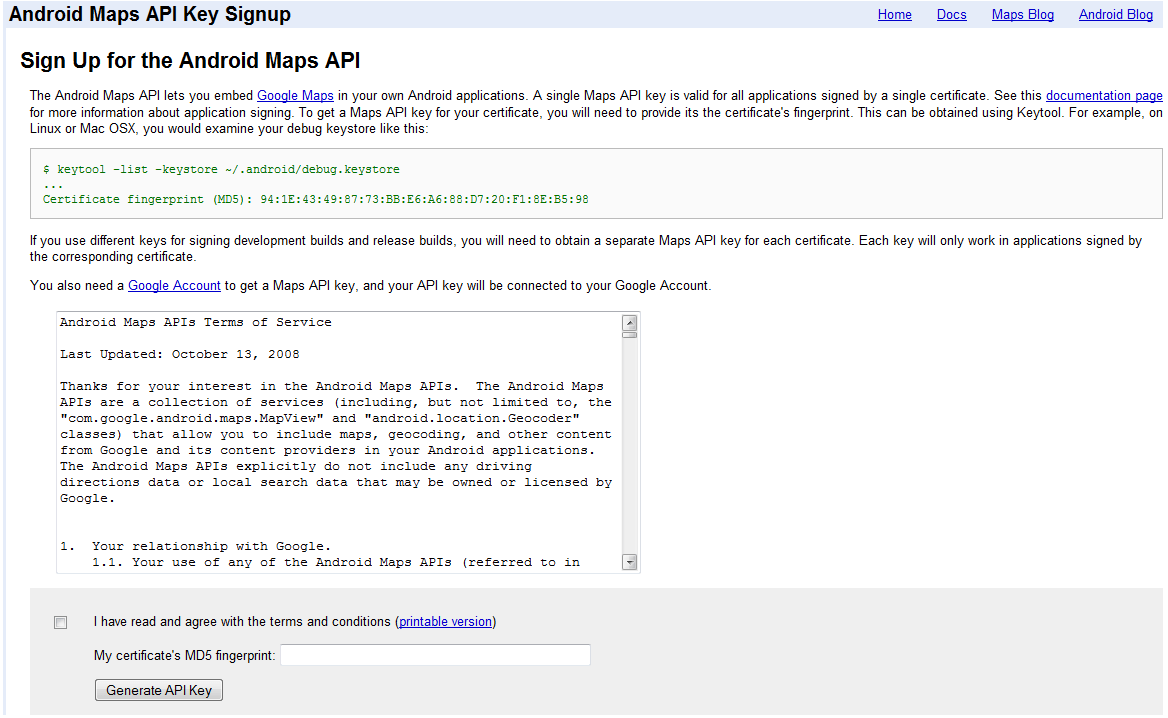
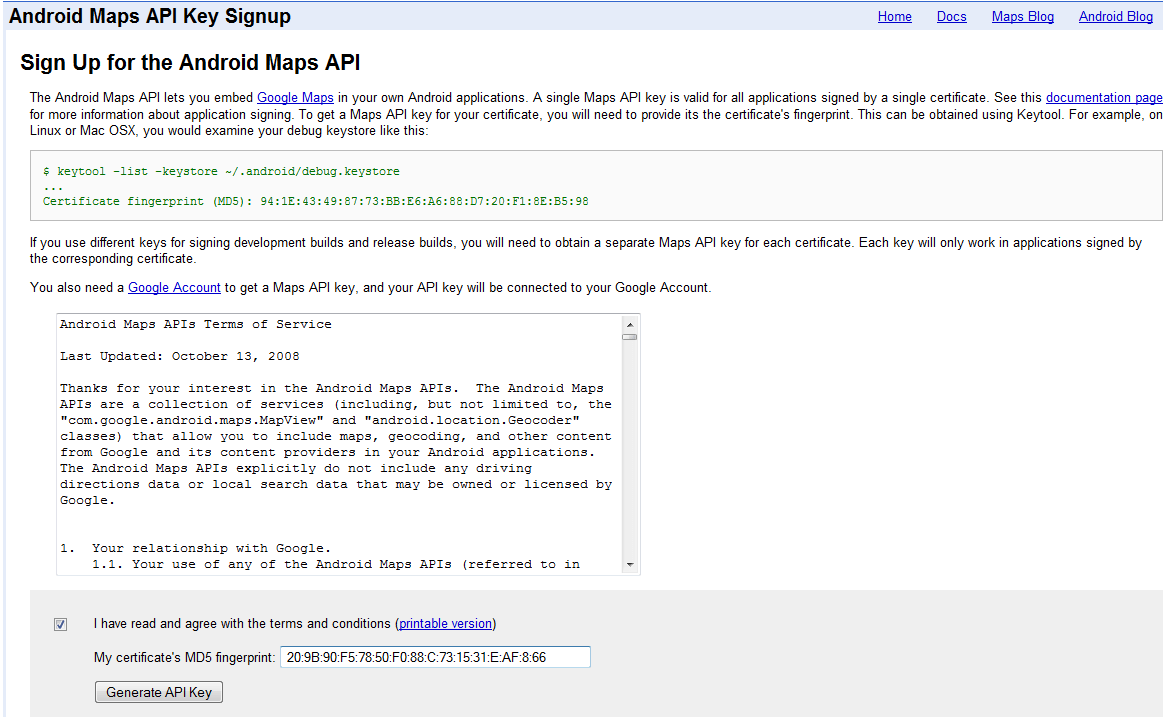
Android MapView Generate API key Using JAVA Keytool


What is keytool ?


Java Keytool is a key and certificate management utility. It allows users to manage their own public/private key pairs and certificates. It also allows users to cache certificates. Java Keytool stores the keys and certificates in what is called a keystore. By default the Java keystore is implemented as a file. It protects private keys with a password. A Keytool keystore contains the private key and any certificates necessary to complete a chain of trust and establish the trustworthiness of the primary certificate.
Each certificate in a Java keystore is associated with a unique alias. When creating a Java keystore you will first create the .jks file that will initially only contain the private key. You will then generate a CSR and have a certificate generated from it. Then you will import the certificate to the keystore including any root certificates. Java Keytool also several other functions that allow you to view the details of a certificate or list the certificates contained in a keystore or export a certificate.
Note: For easier management of your Java Keystores (using a GUI) check out Portecle. If you need to buy a certificate, try to compare SSL with our SSL Wizard.


Steps to be followed


1) Go to Command prompt
2) Generate MD5 Key using java keytool.
3) Fill the information for the key.
4) Get the md5 key.
5) Register it with google.
6) Get the API Key from The google.
7) Use the API key in your application


Description


1) In windows start command promt :
press “ Widow key + r” run diaolg will apear
type cmd and press enter
OR
Press widows key then in search bar type cmd select command prompt from the list.
Then change directory to jdk/bin
e.g c:/…./java/jdk.16/bin
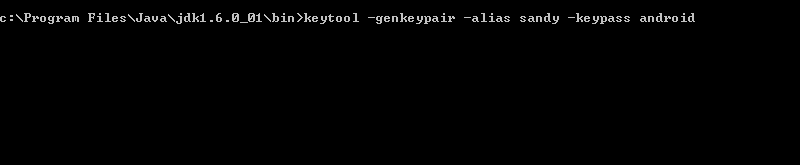
2) Enter the following command…
keytool –genkeypair -alias (alias_name) -keypass (password)
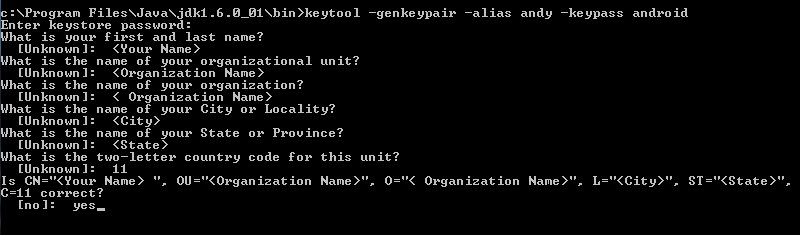
e.g. keytool -genkeypair -alias andy -keypass android

3) Fill the information form.

After running the above command you will find .keystore file generated at your home folder
C:\Users\…\.keystore
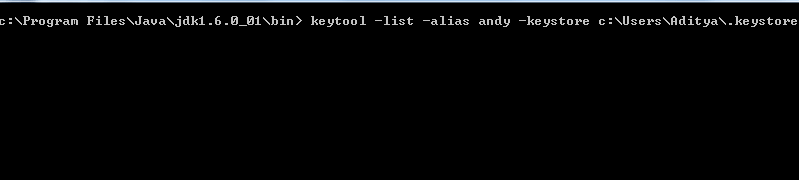
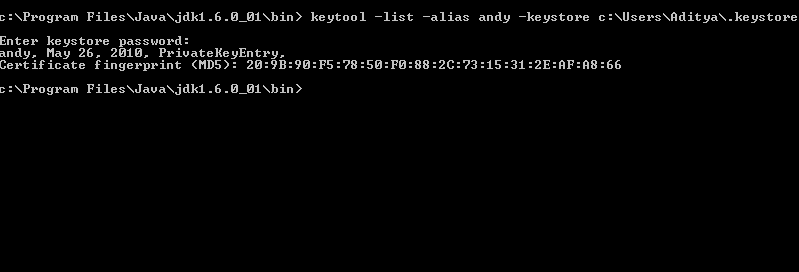
4) Run the following command to get Certificate fingerprint (MD5):
keytool -list -alias -keystore .keystore
e.g. keytool -list -alias andy -keystore c:\Users\..\.keystore


5) After getting the key, register the key with google, on the following link
http://code.google.com/android/maps-api-signup.html

6) Follow the steps and you will get the API key.

7) Use that key in your android/iPhone application.

For detailed use of key tool go to following link
http://java.sun.com/j2se/1.4.2/docs/tooldocs/windows/keytool.html

Android Jtwitter : Twitter Connect Tutorial


Now a days social networking websites like Twitter&  are becoming very popular,
so integrating Twitter with app has become a necessity to make your application popular.
We are going to do the same through this tutorial. The Twitter Connect SDK provides
code which third-party developers can embed into their applications to connect to their
Twitter accounts and exchange information with Android apps. It’s a way of embedding
“social context” to an Android app, according to Twitter.
Create a Viewbased Application with name ‘Twitter Android Prj’.

Follow the following steps:

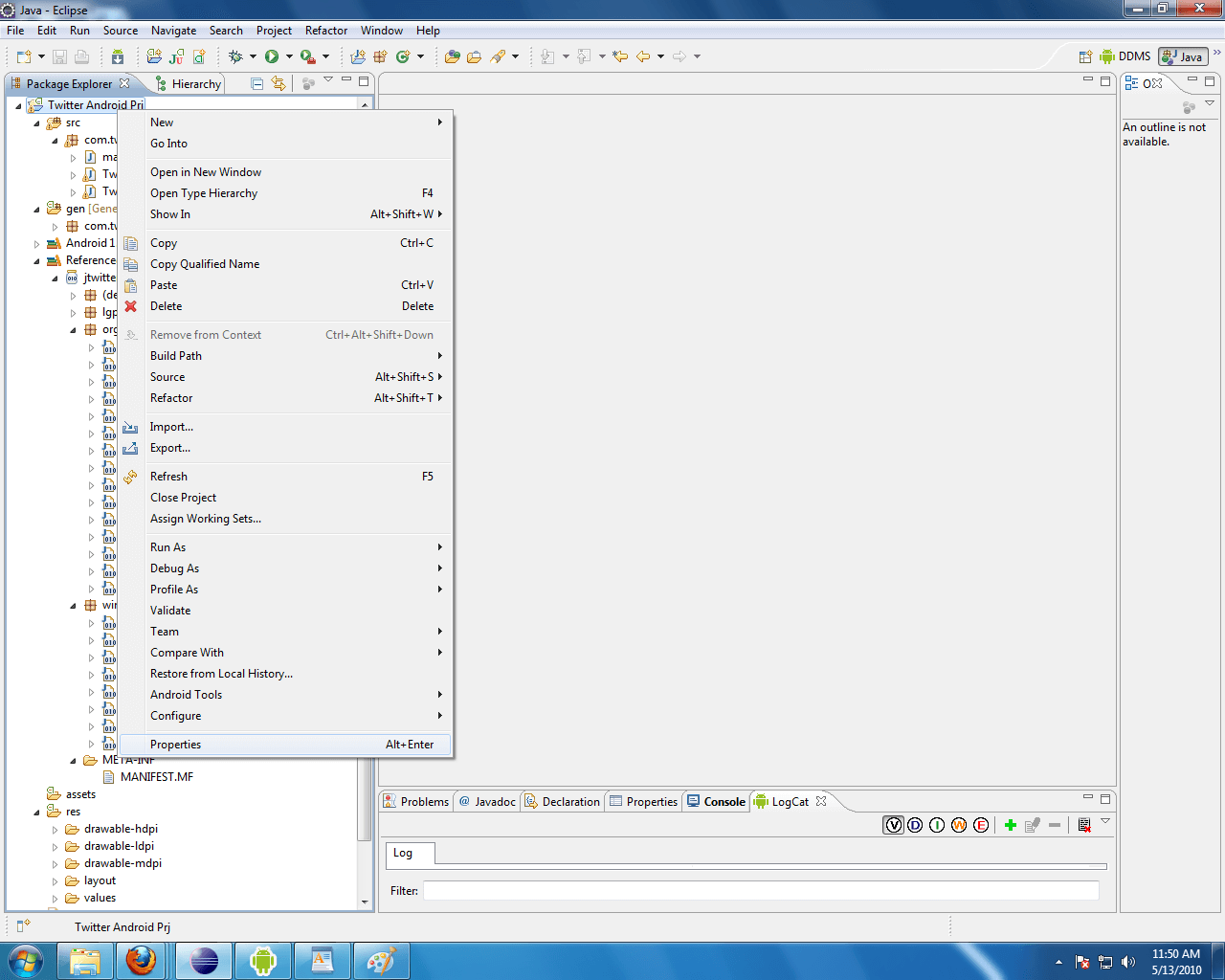
1)    Download jtwitter.jar for Android
http://www.winterwell.com/software/jtwitter.php

  • 1.1 First you have to set up new Android project .

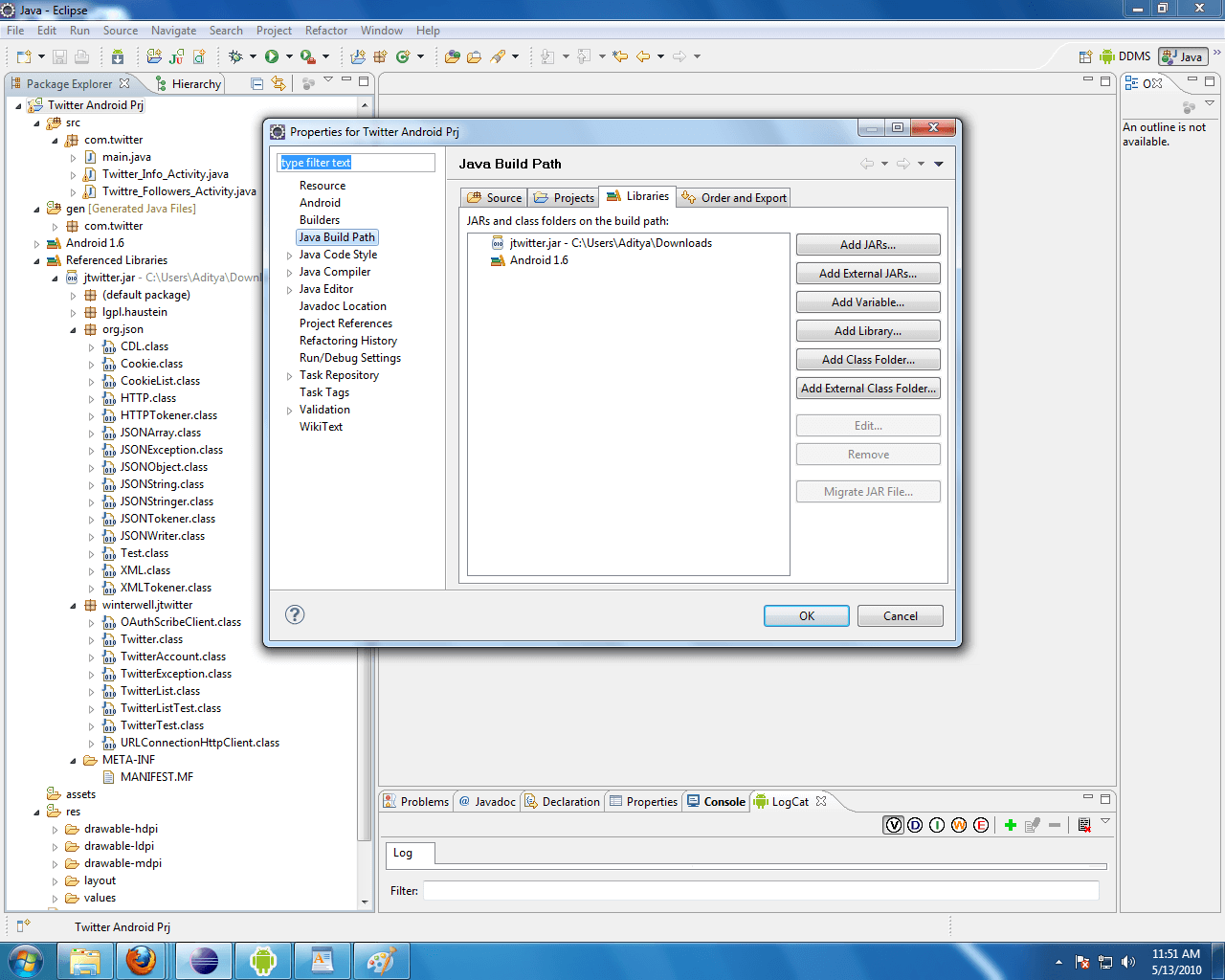
  • 1.2 We have to add all JARs and Library files.

  • 1.3 Import all files in the destination group folder.

  • 1.4 To test import all JAR and library in case any miss.And compile.

  • 2) Create your twitter Acoount.
    3)  Now Save project (Command +S). Build and Run Project.
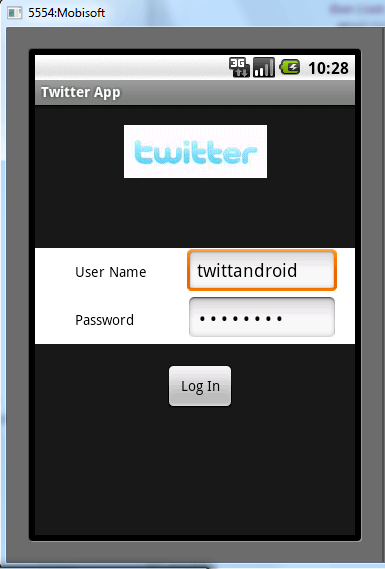
    4) enter user name and password & Click on Log In Button.
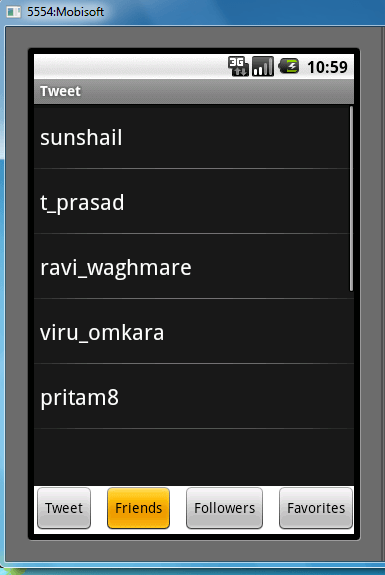
    5) Initailly you will see the friends List.
    6) Click on Twit button and you can post new tweets in input dialog click ok to post .
    7) Click on Followers button and you eill see the list of followers.
    8 ) Click on Favorites button and you eill see the list of favorite tweets.

    Description :

    1)  Download jtwitter.jar
    1.1  We have to add all JARs and Library files as below
    add_jar1
    add_jar2
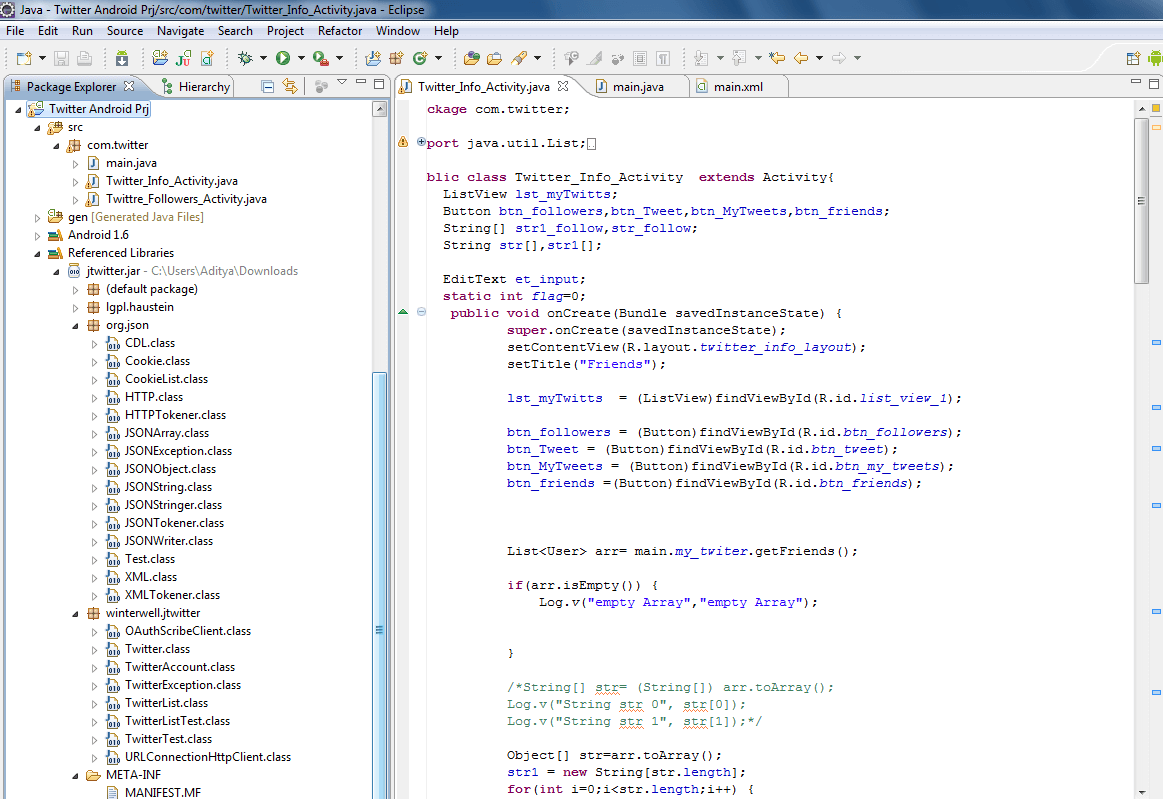
    1.2 Import all files destination group folder. It should also look as shown below
    ImportedLib
    Append Following code in .xml file for UI Design
    <;?xml version="1.0" encoding="utf-8"?>
    <ImageView
    android:layout_width="fill_parent"
    android:layout_height="wrap_content"
    android:src="@drawable/logo1"
    android:layout_gravity="center_horizontal"
    android:layout_marginLeft="0dip"
    android:layout_marginTop="20dip"
    />
    <!– Code For Login Name And Password  –>
    <FrameLayout
    android:layout_width="fill_parent"
    android:layout_height="wrap_content"
    android:background="#fff"
    android:layout_marginTop="70dip">
    <TableLayout
    android:layout_width="fill_parent"
    android:layout_height="wrap_content"
    android:layout_gravity="center_vertical"
    android:gravity="center_horizontal"  >
    <TableRow
    android:layout_width="fill_parent"
    android:layout_height="wrap_content">
    <TextView
    android:layout_width="fill_parent"
    android:layout_height="wrap_content"
    android:text="User Name"
    android:layout_marginLeft="40dip"
    android:textColor="#000"
    />
    <EditText
    android:layout_width="150dip"
    android:layout_height="wrap_content"
    android:layout_marginLeft="40dip"
    android:singleLine="true"
    android:id="@+id/main_username_edit_text"
    />
    </TableRow>
    <TableRow
    android:layout_width="fill_parent"
    android:layout_height="wrap_content">
    <TextView
    android:layout_width="fill_parent"
    android:layout_height="wrap_content"
    android:text="Password"
    android:layout_marginLeft="40dip"
    android:textColor="#000"
    />
    <EditText
    android:layout_width="150dip"
    android:layout_height="wrap_content"
    android:layout_marginLeft="40dip"
    android:password="true"
    android:singleLine="true"
    android:id="@+id/main_password_edit_text"
    />
    </TableRow>
    </TableLayout>
    </FrameLayout>
    <Button
    android:layout_width="70dip"
    android:layout_height="wrap_content"
    android:text="Log In"
    android:id="@+id/main_loin_button"
    android:layout_marginTop="20dip"
    android:layout_marginLeft="130dip"
    />
    <!– Code For Login Name And Password Ends –>
    </LinearLayout>
    [/java]
    Code Description :
    Login:
    01my_twiter = new Twitter(userName,password);
    02if(my_twiter == null){
    03Toast.makeText(main.this, "Incorrect Login",
    04Toast.LENGTH_LONG).show();
    05}
    06else {
    07try {
    08Log.v("Twitter Status :",my_twiter.getStatus()+"");
    09Intent intent = new Intent(main.this,Twitter_Info_Activity.class);
    10startActivity(intent);
    11}catch(Exception e){
    12e.printStackTrace();
    13}
    14}
    Tweet Button Click :
    01setTitle("Tweet");
    02AlertDialog.Builder inputDialog;
    03inputDialog = new AlertDialog.Builder(Twitter_Info_Activity.this);
    04inputDialog.setTitle("Enter Tweet");
    05et_input = new EditText(Twitter_Info_Activity.this);
    06et_input.setWidth(250);
    07et_input.setHeight(30);
    08inputDialog.setView(et_input);
    09inputDialog.setPositiveButton("Ok",
    10new DialogInterface.OnClickListener() {
    11@Override
    12public void onClick(DialogInterface dialog, int which) {
    13// TODO Auto-generated method stub
    14String txt_tweet= et_input.getText().toString();
    15main.my_twiter.setStatus(txt_tweet);
    16Toast.makeText(Twitter_Info_Activity.this,
    17"Tweet Successful",
    18Toast.LENGTH_LONG).show();
    19}
    20});
    21inputDialog.setNegativeButton("Cancle",
    22new DialogInterface.OnClickListener() {
    23@Override
    24public void onClick(DialogInterface dialog, int which) {
    25// TODO Auto-generated method stub
    26}
    27});
    28inputDialog.show();
    29}
    Friends Button Click :
    1setTitle("Friends");
    2List<User> arr= main.my_twiter.getFriends();
    3Object[] str=arr.toArray();
    4String[] str1 = new String[str.length];
    5for(int i=0;i<str.length;i++) {
    6str1[i] = str[i].toString();
    7}
    8lst_myTwitts.setAdapter(new ArrayAdapter<String>(Twitter_Info_Activity.this,
    9android.R.layout.simple_list_item_1, str1));
    Followers Button Click :
    01setTitle("Followers");
    02List<User> arr= main.my_twiter.getFollowers();
    03Object[] str=arr.toArray();
    04String[] str1 = new String[str.length];
    05if(str1.length == 0) {
    06Toast.makeText(Twitter_Info_Activity.this, "No Followers",
    07Toast.LENGTH_LONG).show();
    08}
    09for(int i=0;i<str.length;i++) {
    10str1[i] = str[i].toString();
    11}
    12lst_myTwitts.setAdapter(new ArrayAdapter<String>
    13(Twitter_Info_Activity.this,
    14android.R.layout.simple_list_item_1, str1));
    Favorite Button Click :
    01setTitle("Favorites");
    02List<Status> arr= main.my_twiter.getFavorites();
    03Object[] str=arr.toArray();
    04String[] str1 = new String[str.length];
    05if(str1.length == 0) {
    06Toast.makeText(Twitter_Info_Activity.this,
    07"No Favorites", Toast.LENGTH_LONG).show();
    08}
    09for(int i=0;i<str.length;i++) {
    10str1[i] = str[i].toString();
    11}
    12lst_myTwitts.setAdapter(new ArrayAdapter<String>(Twitter_Info_Activity.this,
    13android.R.layout.simple_list_item_1, str1));
    Now Save project (Command +S). Build and Run Project.
    Simulator will look like as follows
    1) Login Screen : enter your twitter user name and password
    LoginScreen
    2) Friends Screen : shows your friends list.
    FriendsList
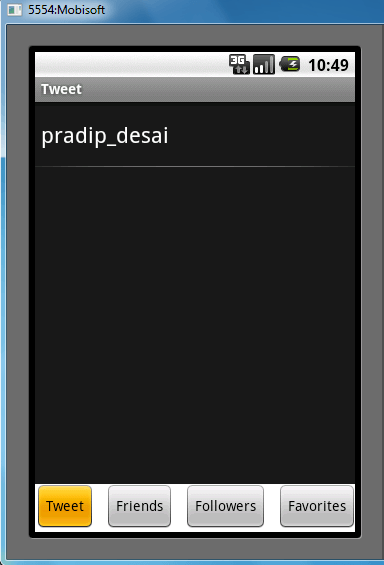
    3) Tweet : Click on Tweet Button
    TweetClick
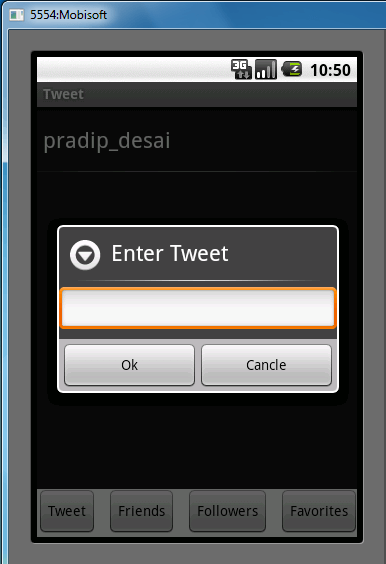
    Input Dialog will appear
    TweetDialog
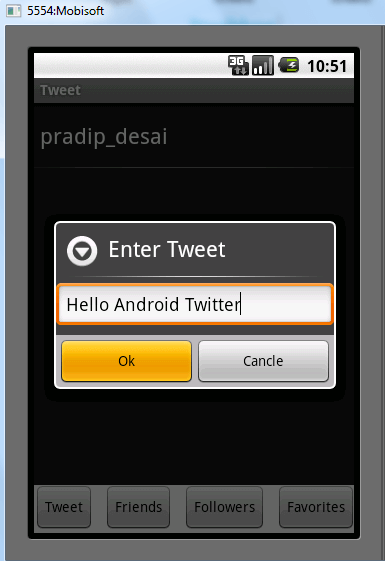
    Enter The Text in the dialogBox and click on Ok.
    TweetMessage
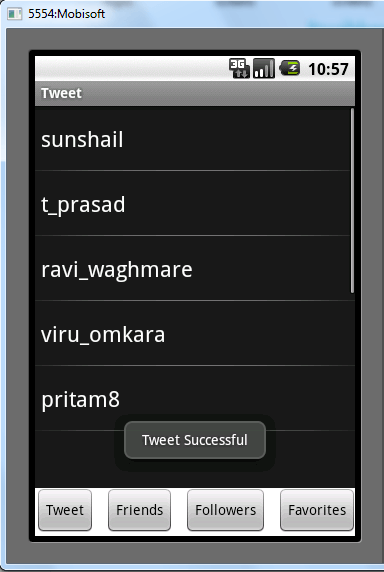
    it will show the message the tweet is successful.
    SuccessfulTweet
    URL:http://www.mobisoftinfotech.com/blog/category/android/


    Thursday, February 10, 2011

    drawable bitmmap resizing

    1. public class bitmaptest extends Activity {
    2.     @Override
    3.     public void onCreate(Bundle icicle) {
    4.         super.onCreate(icicle);
    5.         LinearLayout linLayout = new LinearLayout(this);
    6.        
    7.         // load the origial BitMap (500 x 500 px)
    8.         Bitmap bitmapOrg = BitmapFactory.decodeResource(getResources(),
    9.                R.drawable.android);
    10.        
    11.         int width = bitmapOrg.width();
    12.         int height = bitmapOrg.height();
    13.         int newWidth = 200;
    14.         int newHeight = 200;
    15.        
    16.         // calculate the scale - in this case = 0.4f
    17.         float scaleWidth = ((float) newWidth) / width;
    18.         float scaleHeight = ((float) newHeight) / height;
    19.        
    20.         // createa matrix for the manipulation
    21.         Matrix matrix = new Matrix();
    22.         // resize the bit map
    23.         matrix.postScale(scaleWidth, scaleHeight);
    24.         // rotate the Bitmap
    25.         matrix.postRotate(45);
    26.         // recreate the new Bitmap
    27.         Bitmap resizedBitmap = Bitmap.createBitmap(bitmapOrg, 0, 0,
    28.                           width, height, matrix, true);
    29.    
    30.         // make a Drawable from Bitmap to allow to set the BitMap
    31.         // to the ImageView, ImageButton or what ever
    32.         BitmapDrawable bmd = new BitmapDrawable(resizedBitmap);
    33.        
    34.         ImageView imageView = new ImageView(this);
    35.        
    36.         // set the Drawable on the ImageView
    37.         imageView.setImageDrawable(bmd);
    38.      
    39.         // center the Image
    40.         imageView.setScaleType(ScaleType.CENTER);
    41.        
    42.         // add ImageView to the Layout
    43.         linLayout.addView(imageView,
    44.                 new LinearLayout.LayoutParams(
    45.                       LayoutParams.FILL_PARENT, LayoutParams.FILL_PARENT
    46.                 )
    47.         );
    48.        
    49.         // set LinearLayout as ContentView
    50.         setContentView(linLayout);
    51.     }
    52. }
       Ref Website:http://www.anddev.org/resize_and_rotate_image_-_example-t621.html