1.Intent browserIntent = new Intent(Intent.ACTION_VIEW, Uri.parse("http://www.google.com"));
startActivity(browserIntent);2.if (!url.startsWith("http://") && !url.startsWith("https://")) url = "http://" + url;
---------------------------------------------------------------------------------------------------------------
http://www.pocketmagic.net/?p=1776
y Radu Motisan Posted on March 18th, 2011

 | 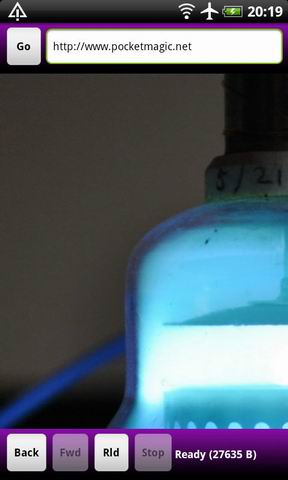 |  | 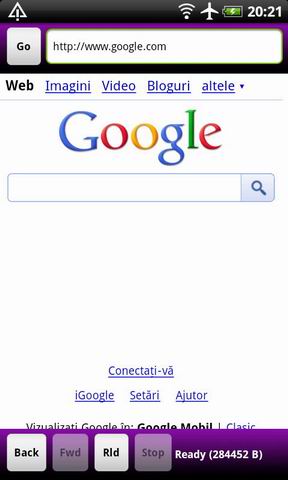 |
<uses-permission android:name="android.permission.INTERNET" />m_web.getSettings().setJavaScriptEnabled(true); m_web.setWebViewClient(new MyWebViewClient());Note: The WebView Client class is quite simple:
private class MyWebViewClient extends WebViewClient {
@Override
public void onPageStarted(WebView view, String url, Bitmap favicon) {
 Log.d(LOG_TAG, "onPageStarted");
 m_tv.setText("Loading page...");
 //stop button is enabled only when pages are loading
 m_bButStop.setEnabled(true);
}
@Override
public void onPageFinished(WebView view, String url) {
 Log.d(LOG_TAG, "onPageFinished");
 m_tv.setText("Ready ");
 //stop button is disabled when pages are already loaded
 m_bButStop.setEnabled(false);
 // This call inject JavaScript into the page which just finished loading.
 m_web.loadUrl("javascript:window.HTMLOUT.showHTML('<head>'+document.getElementsByTagName('html')[0].innerHTML+'</head>');");
 // adjust prev/next buttons, only if history is available
 m_bButBack.setEnabled(m_web.canGoBack());
 m_bButFwd.setEnabled(m_web.canGoForward());
}

@Override
public boolean shouldOverrideUrlLoading(WebView view, String url) {
 view.loadUrl(url);
 return true;
}

}
Details:
To run the Javascript we need to call :
// set java script used to get the HTML code
m_web.addJavascriptInterface(new JavaScriptInterface(), "HTMLOUT");
// Used with Webview, to get the HTML code
class JavaScriptInterface{
public void showHTML(String html) {
 m_nHTMLSize = 0;
 if (html !=null) {
  //int i = html.lastIndexOf(""); //search for something in the text
  m_nHTMLSize = html.length();
  Log.d(LOG_TAG, "HTML content is: "+html+"\nSize:"+m_nHTMLSize+" bytes");

 }
}
}
@Override
public boolean shouldOverrideUrlLoading(WebView view, String url) {
 view.loadUrl(url);
 return true;
}

No comments:
Post a Comment